
First sign-in and access
How to start when you do not have an account yet.
Account → Overview
Step-by-step video
Select a step to pause the video at that point. Use full screen for a larger view.
Obtain access first
For a new newsroom, contact support. If your newsroom is already connected, ask its administrator.
Include your website, required social channels and approximate daily article count.
View the steps as pictures
1. Obtain access first
For a new newsroom, contact support. If your newsroom is already connected, ask its administrator.
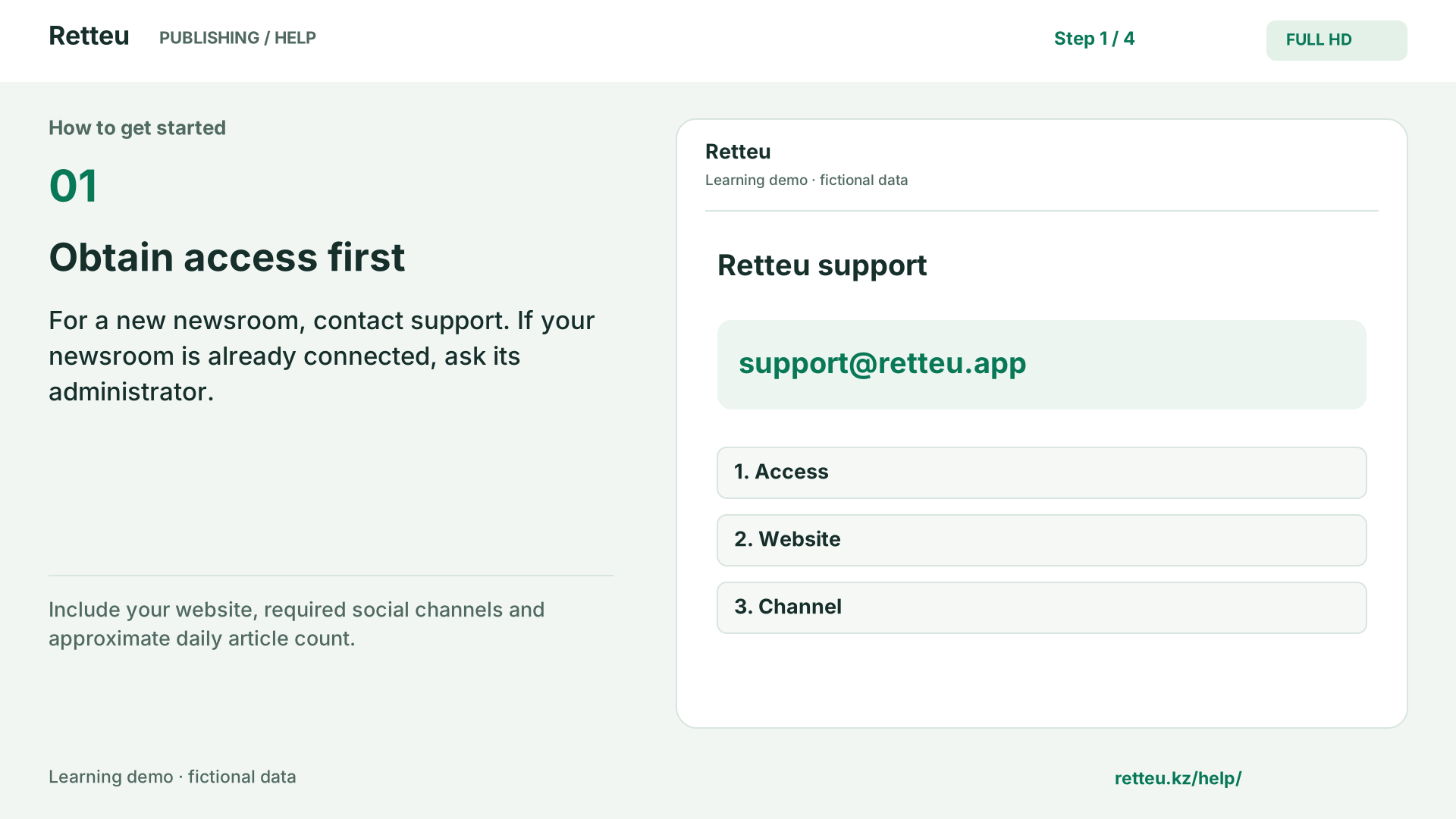
Include your website, required social channels and approximate daily article count.
2. Sign in to your account
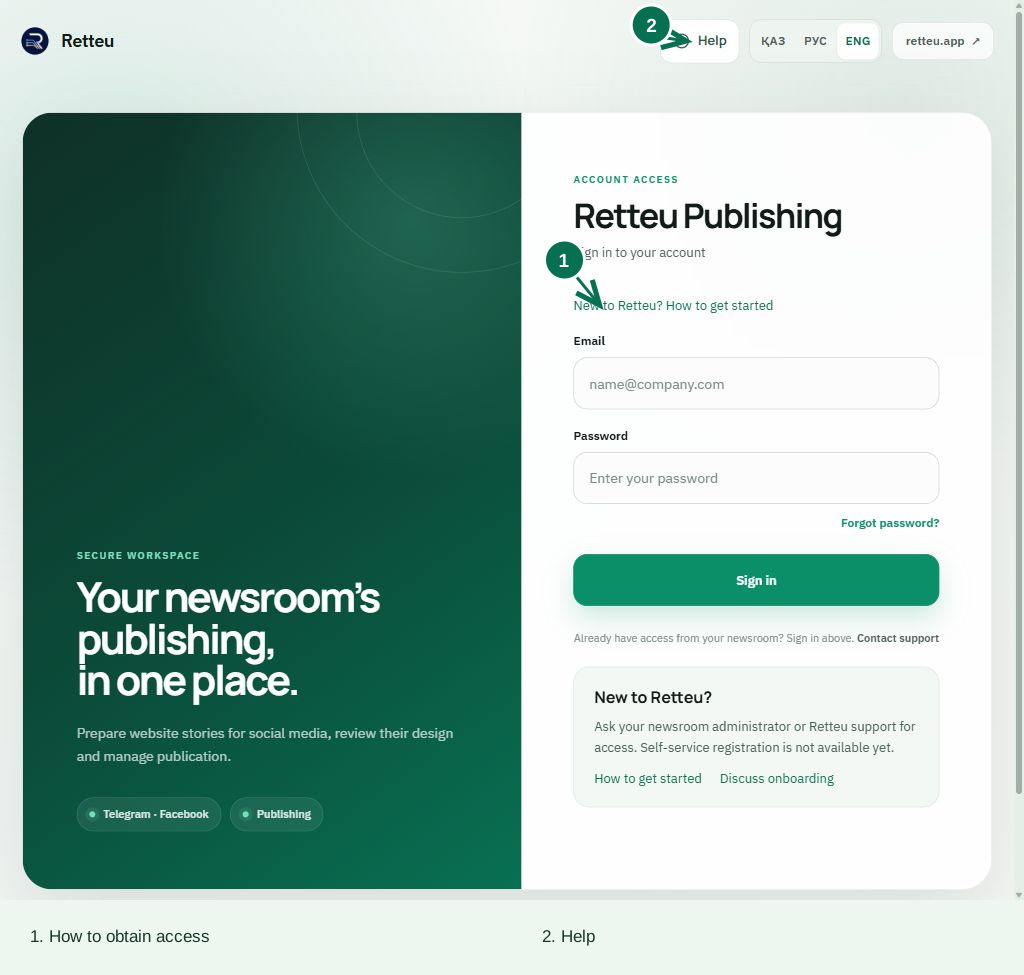
Open app.retteu.app → Sign in. Use your account’s email and password.
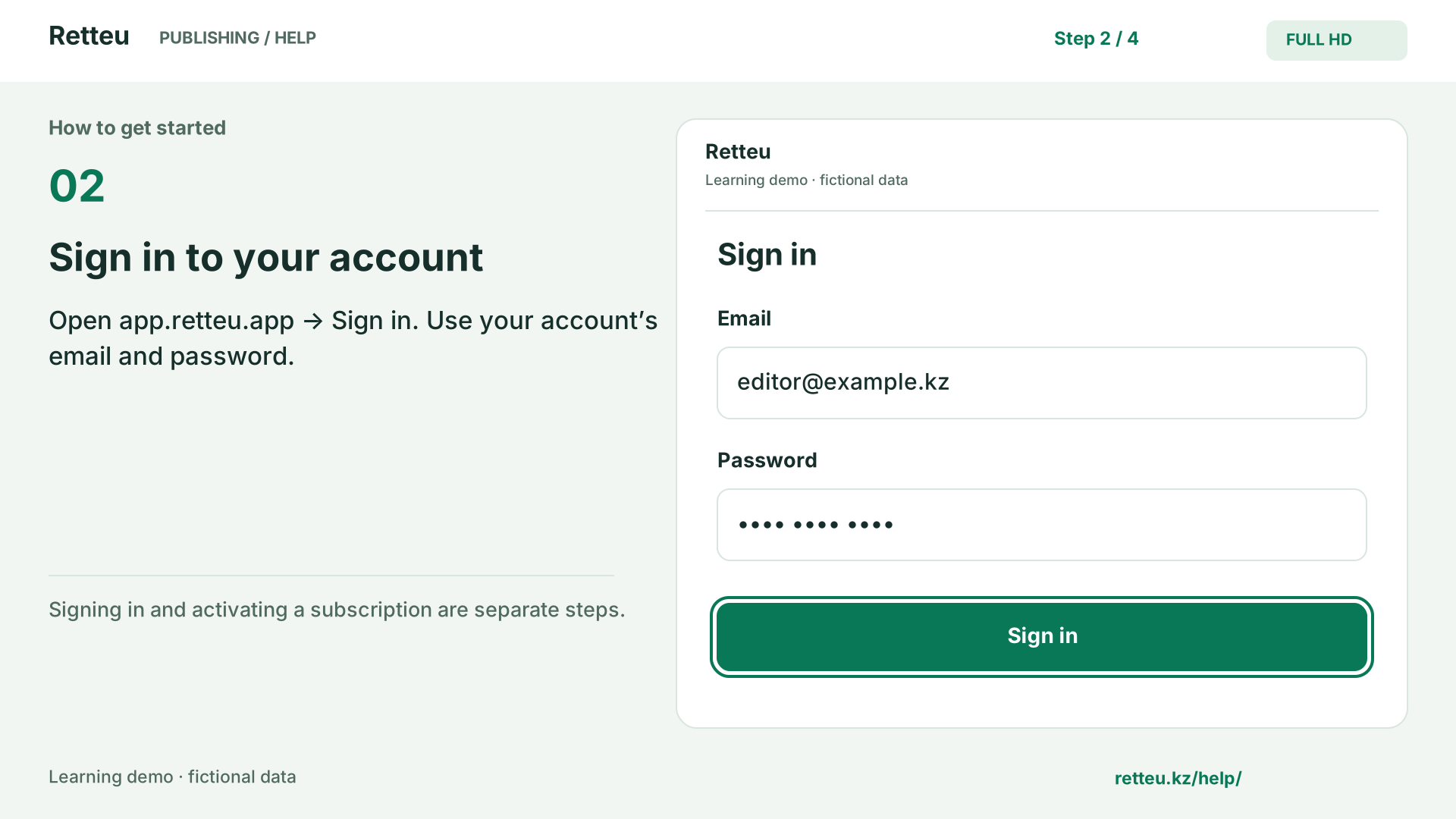
Signing in and activating a subscription are separate steps.
3. Open Sources
Choose Sources in the top menu. This is where your newsroom’s websites are listed.
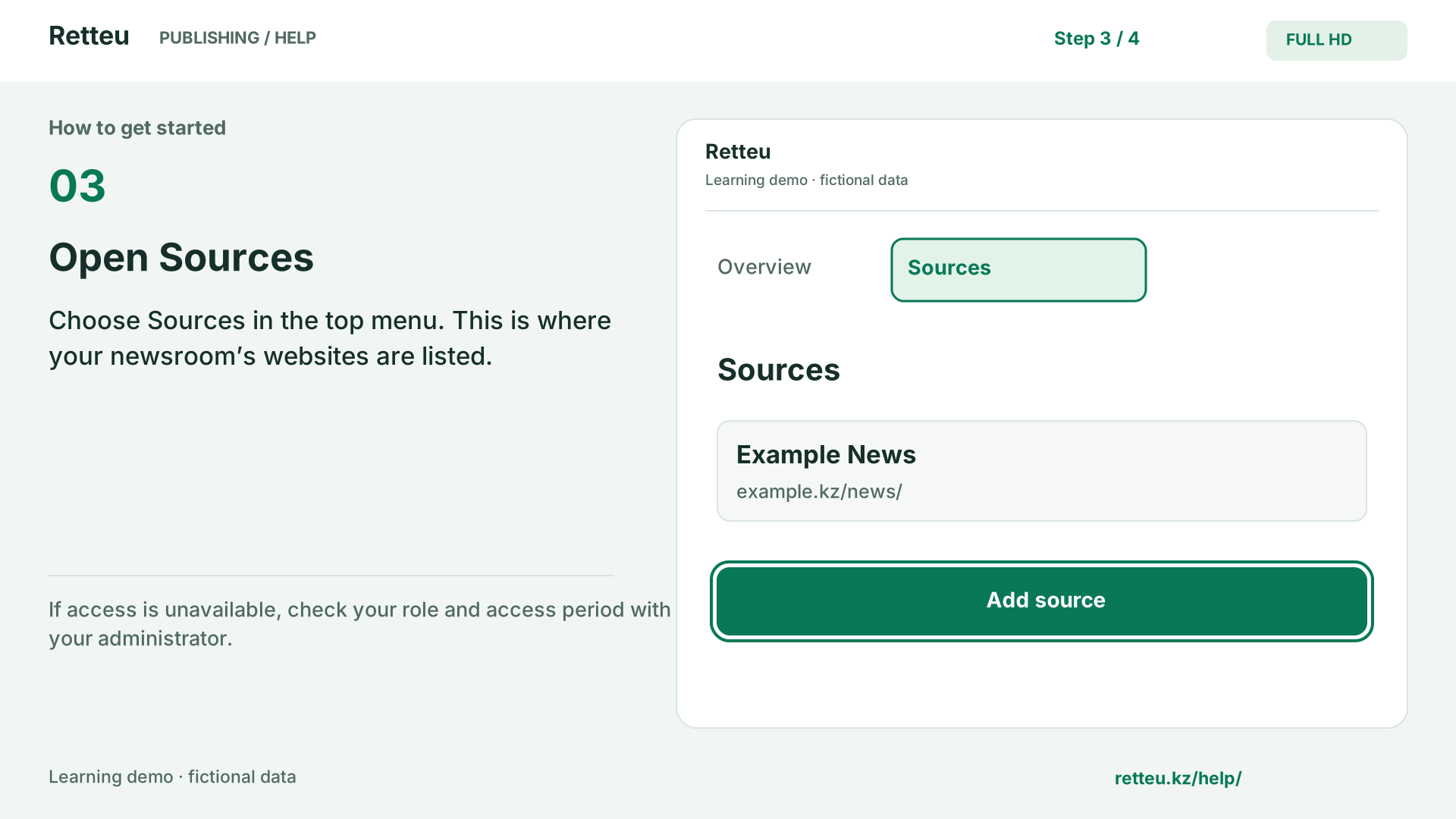
If access is unavailable, check your role and access period with your administrator.
4. Add a website and a channel
Add your website and check its articles first. Then choose a publishing channel.
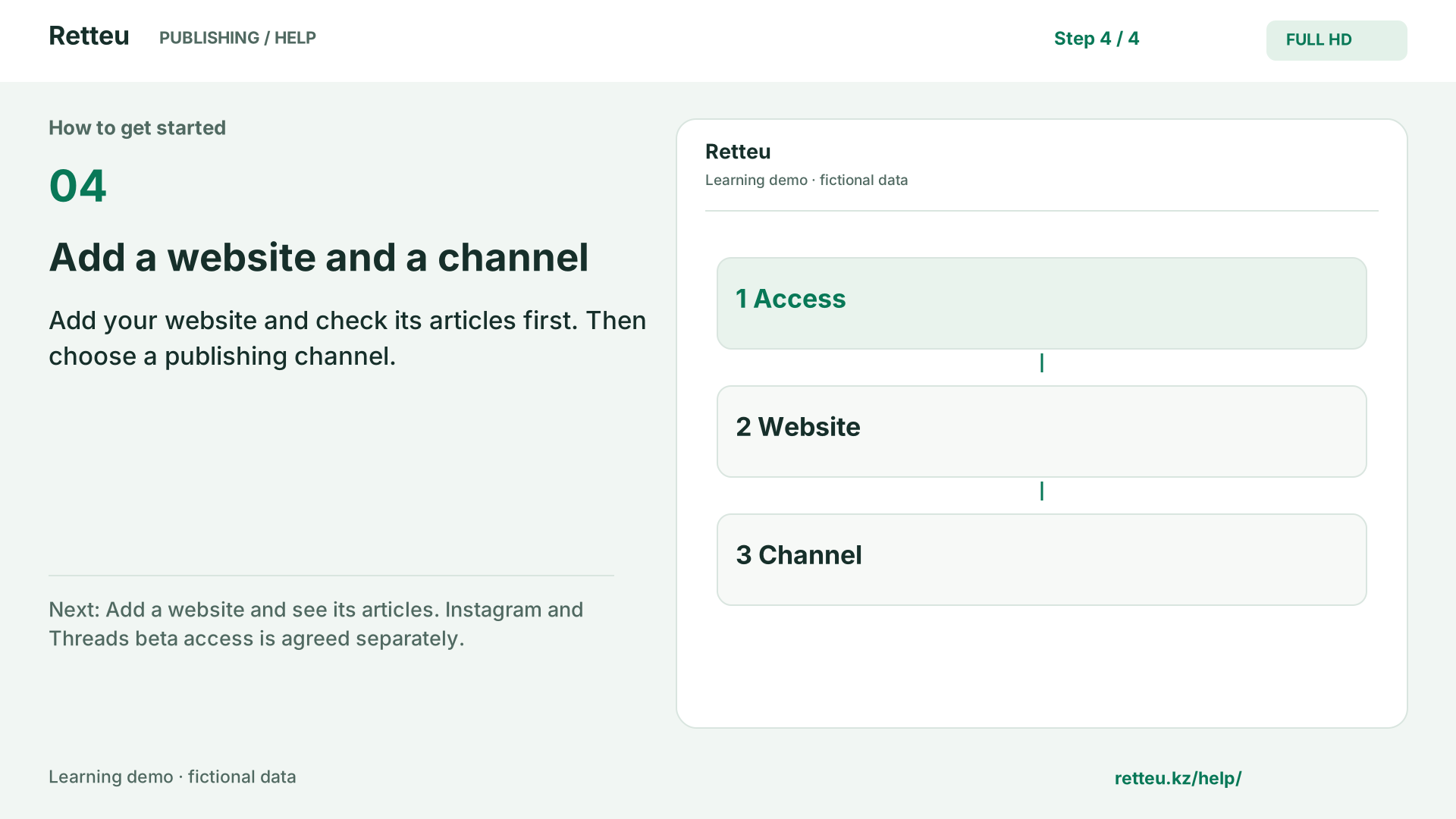
Next: Add a website and see its articles. Instagram and Threads beta access is agreed separately.
An animated learning diagram using Retteu field names, not a recording of a real account. Data is fictional and no audio is needed. Actual interface examples and detailed written steps are below.
What to do
Contact support@retteu.app with your website, required social networks and approximate articles per day. The link opens your own email app.
Agree a plan and check channel eligibility before paying. Instagram and Threads beta access is agreed separately.
New newsrooms arrange access through Retteu support. If your newsroom already uses the service, ask your administrator for access. Self-service registration is not available yet. Once access is provided, select Sign in and use your own email address.
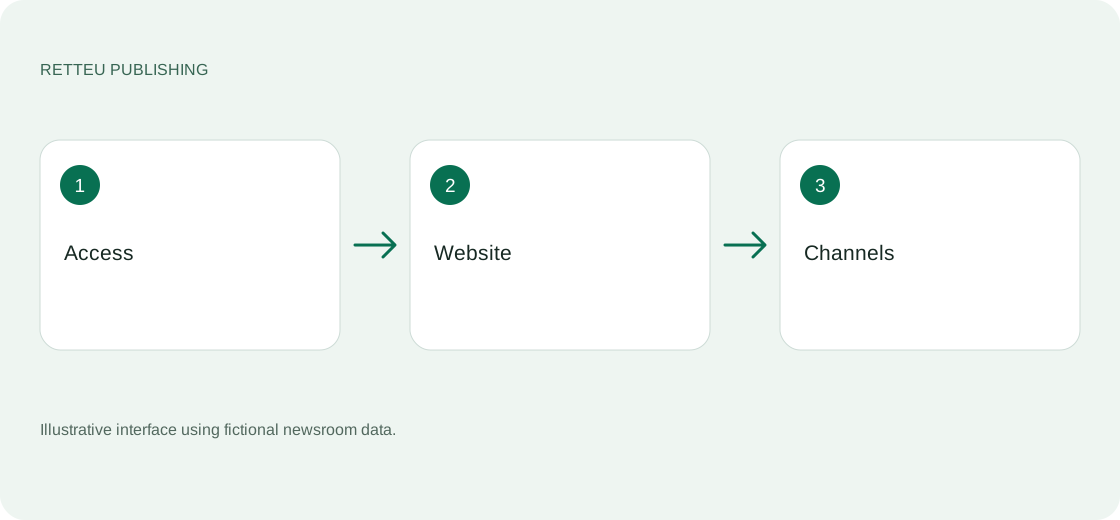
After signing in, open Publishing → Sources. Add your website, then a publishing channel. If access is unavailable, contact your administrator or support.
Screens and diagram
View the diagram
How to check the result
You can open Publishing and Sources. Signing in alone does not activate a plan.